
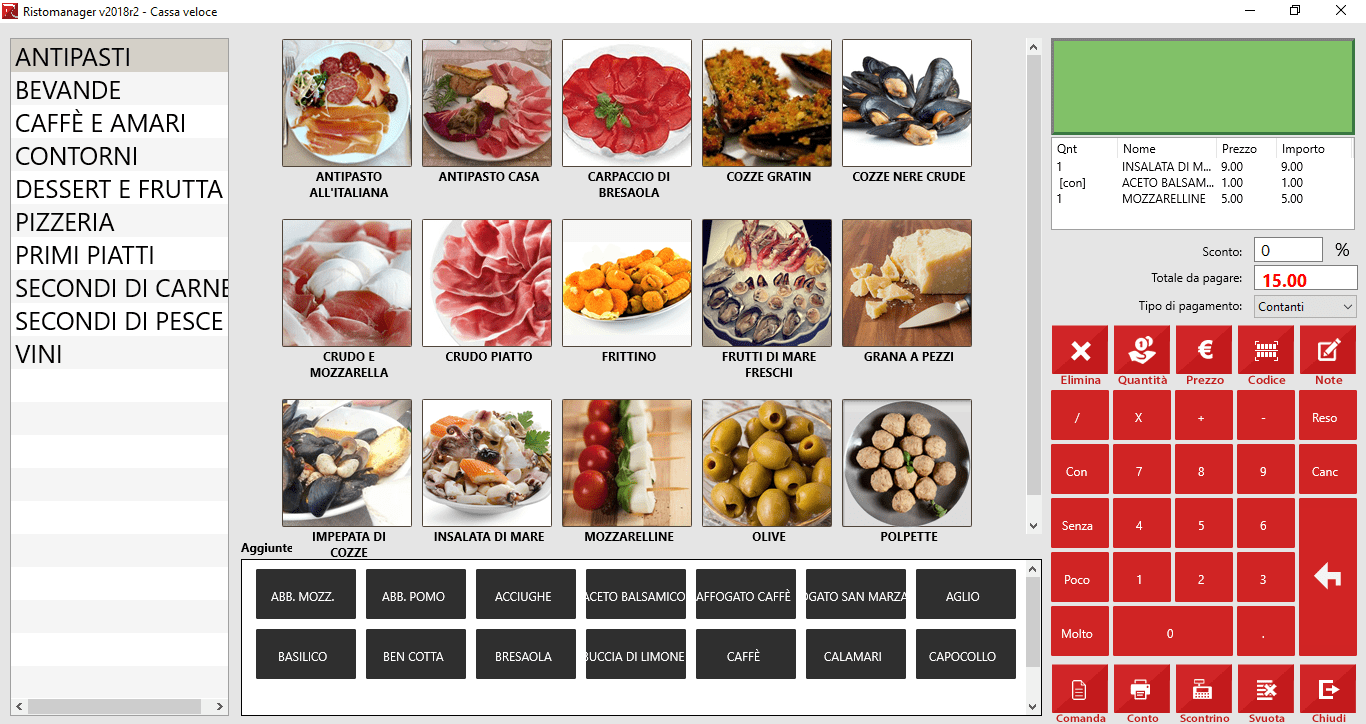
Fast checkout on Ristomanager. And we find ourselves talking about our management system Ristomanager, which among the many functions also has fast checkout, useful for restaurants, pubs, bars and food trucks.
In this article we will discover how to use this function, in all its technical details. Happy reading!
What is it for?
Quick checkout on ristomanager is used to make customers who don't sit at the table pay the bill at the cash register.
When someone grabs a glass of wine on the fly at the counter or when you order takeaway, Quick Checkout represents the ideal tool.
Thanks to its automatic calculator, you will be able to communicate the total to the customer and to the main cashier, in order to print the receipt.
How do you use quick checkout on ristomanager (quick instructions)?
Open the interface of Ristomanager and click on Quick checkout on ristomanager, so you can place the order.
Search for products in the various categories (starters, drinks, wines, etc.) and click on the ones you like are of interest.
If they give you a discount coupon, enter it in the green rectangle.
Now that you have the total at hand, communicate it to the customer and click on Print receipt.
If you are not very familiar with the tool, in the points below I will give you the official Ristomanager guide.
Guide
How to insert a dish
On the left side of the window it is possible to select all the Dishes available, all inserted via the Warehouse whose functions we have already seen.
To add them, first simply select the Category to which they belong, then click on the image of the Dish if available, and the program will insert them into the bill, located on the right side of the window, together with the Total to Pay, in which it will be updated.
How to insert an addition
When inserting products into the order, you can manage the addition of ingredients at the same time, simply by selecting them from the list of Ingredients located under the products, which appears after selecting a category.
To apply an addition, first select the product you wish to intervene on, then click on an operation from those available such as red icons located to the left of the numeric keypad, finally click on the name of the desired ingredient.
With RistoManager it is possible to both add and remove ingredients from the products using the With and Without buttons respectively, as well as specifying whether the customer wants A Little or A Lot of an ingredient.
Quick checkout on Ristomanager
How to change the quantities of a Product
When there are more than one identical product on the order, it is useful to first insert the product, with the various additions, then use the convenient numeric keypad to carry out the four arithmetic operations of Division, Multiplication, Addition and Subtraction, on the quantities of the selected products.
To carry out these operations, you must click on the numbers to set the quantity, then act on the desired operation keys, finally press the Enter (broken arrow) key.It is possible to carry out operations with decimal quantities.
NOTE: By making ingredient changes on multiple products, the cost is multiplied by the quantities of that product.
How to delete products from orders
To delete a product from an order, simply select it from the list under the Total Payable, then use the Delete button (indicated by the green arrow).
The product will be deleted from the list as you can see in the image below.
How to empty orders
In the event that an order is cancelled, simply press the appropriate button Empty, which will eliminate any product inserted and will reset the Total Payable.
How to send the command
Once the order has been created, it is possible to send it to the various department printers using the command Send Order.
How to print the receipt
After sending the order, you can proceed to Print Receipt using the appropriate button;
It is also possible to proceed with the insertion of the products and set the Total to Pay; the program will ask you if you want to send the order, so it will be like using the button Send Order.
How to close the Quick Checkout
It is always possible to close the window of the Quick Checkout and cancel the order, simply using the button Close; this will empty the current command.
Good work!
You might also be interested in: Fast checkout: your restaurant thanks
Comments
No comments yet. Be the first to comment!
Leave a Comment