
Did you know that Ristomanager is the restaurant reservation management software?
Ristomanager is the software to manage restaurant reservations. Help restaurants and their customers plan ahead, reserve tables easily on any device; keep track of who is coming or going from your phone number with 24/7 live chat support!
A great app that can be used by anyone who wants to make sure they have enough seats in advance.
In this article, we will help you discover how to manage restaurant reservations with our software, explaining all its features step by step.
Managing restaurant reservations is important for a successful business because it is the first impression your customers will have of you. Allowing too many people for an event can result in poor service and lower food quality, while not booking enough can lead to them not returning in the future or even alert those nearby that there may be something going on at this venue that isn't very popular with others who already work there! It also helps keep costs low, since management won't need to pay overtime just because of figuring out how busy things were at any given time last week.
There are two main things to know about reservation management: the first concerns the insertion of customers, that is, when a new reservation arrives, you can insert either a new customer or use the name of an existing customer in the database; the second is that, we can associate several reservations with a single table, but being careful to select a different time slot for each one.
After having explained the fundamental notions you need to know regarding customer inclusion, let's now explain the 4 main points for managing reservations.
Ristomanager is the software to manage restaurant reservations. It has tons of features that make it easy to manage and schedule your time, including online scheduling options so you never miss an opportunity again!
4 main points for managing restaurant reservations
1)Enter reservation
Restaurant Reservations
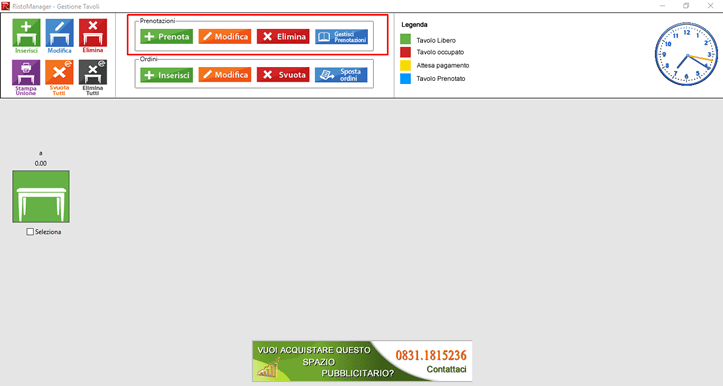
the fundamental thing is to select the table on which you want to insert the reservation and then click on the Book.
buttonA window will appear like this in which you will need to enter the Customer Name, the Table Name, the Date and the Time of Arrival and Number of People.
Restaurant Reservations
To enter the Customer's Name, at the top right we have the possibility of using two buttons: the "New" button and the "Search" button. In the first case, another window will open in which to enter all the customer data, which will be saved in the database, while, in the second case, a window similar to the one opened by the Customer Management button of the main interface will open. If multiple reservations are entered on the same table, Ristomanager will insert them into a list, which can be viewed via the button Edit the Reservations section.
2)Edit restaurant reservations
Restaurant Reservations
as for insertion, you must select the table on which the reservation is inserted and click on the Edit button.Select the time slot to modify and then Save.
3)Delete reservation
same as for insertion and modification, you must first select the table, and click on the Delete.
buttonSubsequently, you will need to select the reservation to delete from the Choose Reservations window which will open if several reservations appear on the selected table and finally press the Delete.
button.4)Reservation management
Restaurant Reservations
In the Booking Management window, all the functions seen in the other 3 points will appear. This will also be useful to be able to view all ongoing bookings, so as to never lose sight of the situation. The buttons Insert, Modify and Delete appear on the screen. This will allow you to manage reservations more quickly, especially in times of intense work.
Restaurant Reservations
You will therefore be able to view the complete list of reservations and by selecting them you will be able to immediately see the Customer Data such as the Company Name, the Address and the contact details of Telephone. It is also possible to perform a Search for Customer, as well as for Table which can be selected from the Table List window and activated with the button on the red magnifying glass . Furthermore, through the Calendar, it is also possible to carry out the search by entering the desired Start Date and the End Date.
I hope this article can help you to better manage your reservations. We recommend that you all purchase Ristomanager both in terms of managing reservations and for the many features it has.
All we have to do is wish you Happy Downloading.
Comments
No comments yet. Be the first to comment!
Leave a Comment